Trend values gradually
Under Timing, pick 5–60 seconds instead of Now to ease vitals toward their new values; the Apply button shows when your changes will land. Rhythm changes are always immediate.
Four steps from an empty browser tab to a live patient monitor.
On Home, choose Create session under Remote. This opens the Remote, the instructor’s control panel for the patient.
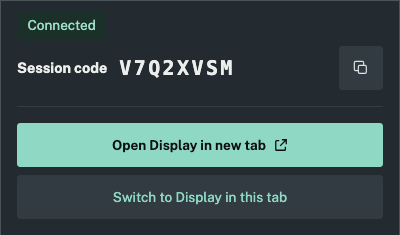
This browser now holds instructor access, so run the scenario from this tab. A session code alone can’t open the Remote in another browser.
Go to Home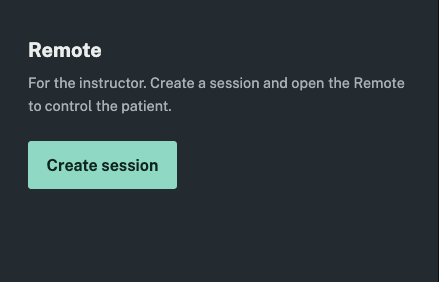
Open the Session menu at the top of the Remote. From there you can:
Learners should only see the Display, never the Remote, so put it on its own screen. You can connect as many Displays as you like; they all show the same patient.
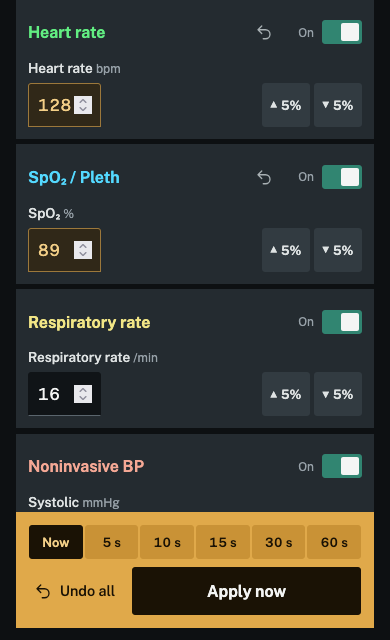
Edit any vital on the Remote. Changed fields turn amber to show they’re waiting. Learners see nothing until you press Apply now, so you can stage several changes and reveal them together.
Changed your mind? Undo all drops every unapplied edit. Your drafts stay put if you navigate away or briefly lose connection.
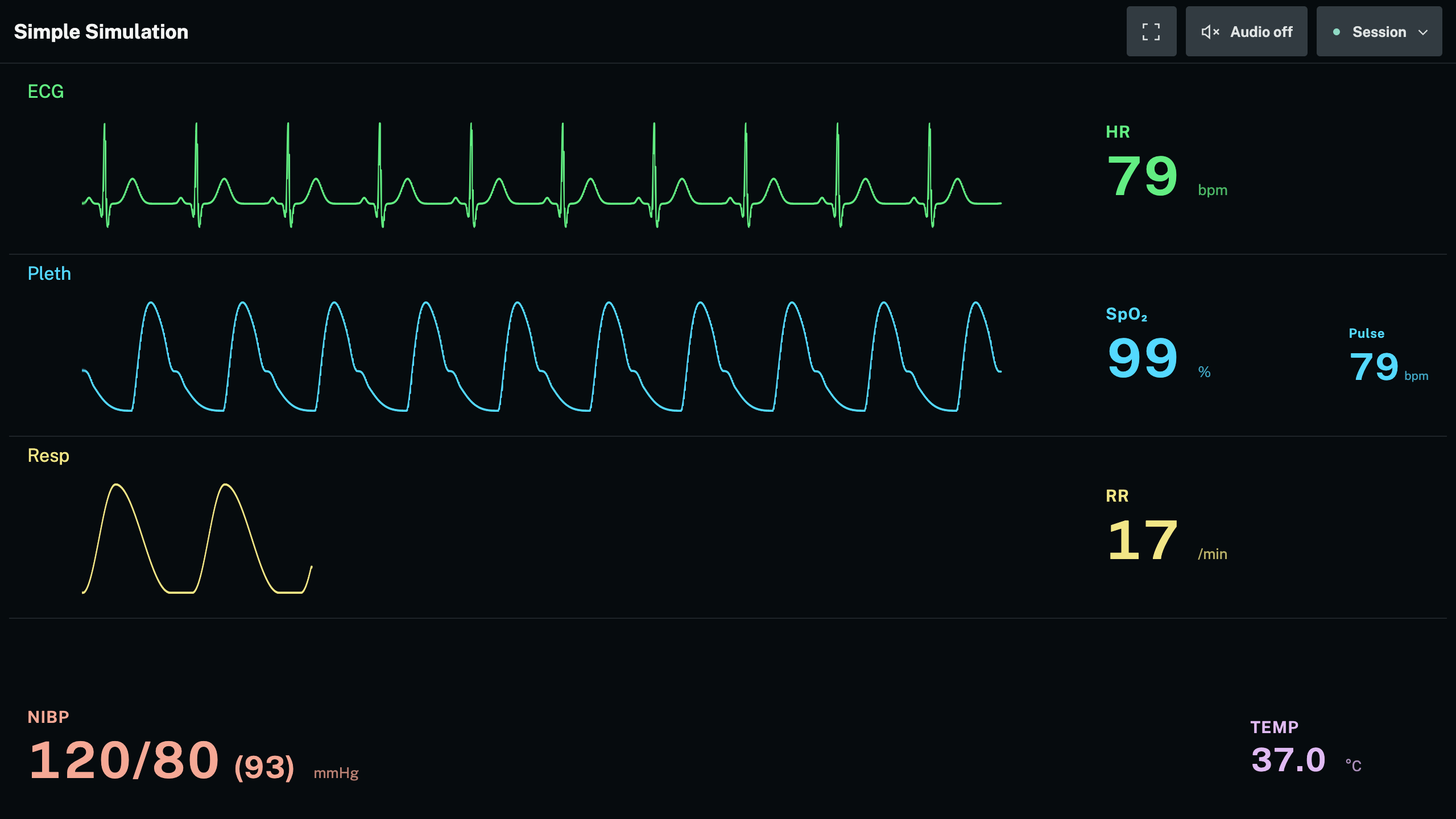
On the Display, tap Audio off to switch sound on. Browsers only allow audio after a tap, so do this on each Display. Set the volume with the Remote’s Volume slider, under Monitor.
Tap the fullscreen icon to hide browser controls. On iPhone, see the FAQ for the Home Screen workaround.
After a few seconds without a touch, the Display’s toolbar fades so only the monitor shows; tap the screen or move the mouse to bring it back. You can turn this off in Monitor settings.

Under Timing, pick 5–60 seconds instead of Now to ease vitals toward their new values; the Apply button shows when your changes will land. Rhythm changes are always immediate.
Pick Infant, Child or Adult to start a new patient with normal vitals for that age; nothing of the previous patient carries over. Sessions start in Basic: HR, SpO₂, RR, NIBP and temperature. Under Simulation options, turn on Advanced mode for rhythms, pulse and CPR, EtCO₂, the arterial line, CVP and per-vital options. Switching back to Basic discards unapplied changes and starts a new patient of the same age with normal vitals.
Type in ECG rhythm to search by name or abbreviation (SVT, VT, NSR). Picking a rhythm suggests its typical heart rate (adding ectopy keeps yours); adjust it before you Apply. For PEA or pulseless VT, choose the rhythm, open Advanced and set Patient has a pulse? to No. Losing the pulse sets RR, EtCO₂ and Arterial line to 0; edit them for CPR. Choosing another rhythm turns the pulse back on.
Start CPR, under Advanced in HR / Rhythm, acts immediately: compressions show on the ECG and Arterial line, and HR shows artifact. Coach quality with Arterial line, EtCO₂, RR and Compression rate, then Apply. Pause CPR for rhythm checks; a returning pulse stops CPR.
On by default, readings fluctuate slightly around the values you set. Adjust or turn it off under Simulation options. Like other edits, it needs Apply.
The Simulation log, at the bottom of Patient settings, records every change you apply, with the time and what moved. Press Stage on an entry to load those values as unapplied edits, then Apply to return to that state. Copy as text saves it for debrief.
Each device has its own switch: ECG leads, pulse oximeter, cuff, arterial line, and more. The Devices menu connects or disconnects them all at once. These also need Apply. A disconnected device’s section collapses to its values; click its title to edit them before switching it on.
The cuff reading only updates when you press Cycle NIBP, just like a real cuff. Update Now finishes a cycle early. A newly connected cuff shows no reading until its first cycle.
With Step together on, the 5% buttons and arrow keys move systolic and diastolic by the same amount. Typing a value changes only that field.
With both the arterial line and cuff connected, the NIBP can follow the arterial pressure at a fixed percentage offset.
Nothing is saved to an account. A session ends after about two hours with nobody connected. Use Return to last session on Home to rejoin one in progress.
Ready for a full case? See an example scenario. Still have questions? Read the FAQ.